Report Tools: Search, Filter, Sort, and Manage Columns
Use the report tools in Stratus Allocator Pro to review large reports more easily. You can search for specific records, filter report data, sort columns, change the number of rows shown, and manage which columns appear on the screen.
These tools are available in Allocator reports after a processed job is selected.

Open a Report
After an Allocator file has finished processing, click inside the job tile to open the job.
Select the report you want to review from the report tabs at the top of the report area.
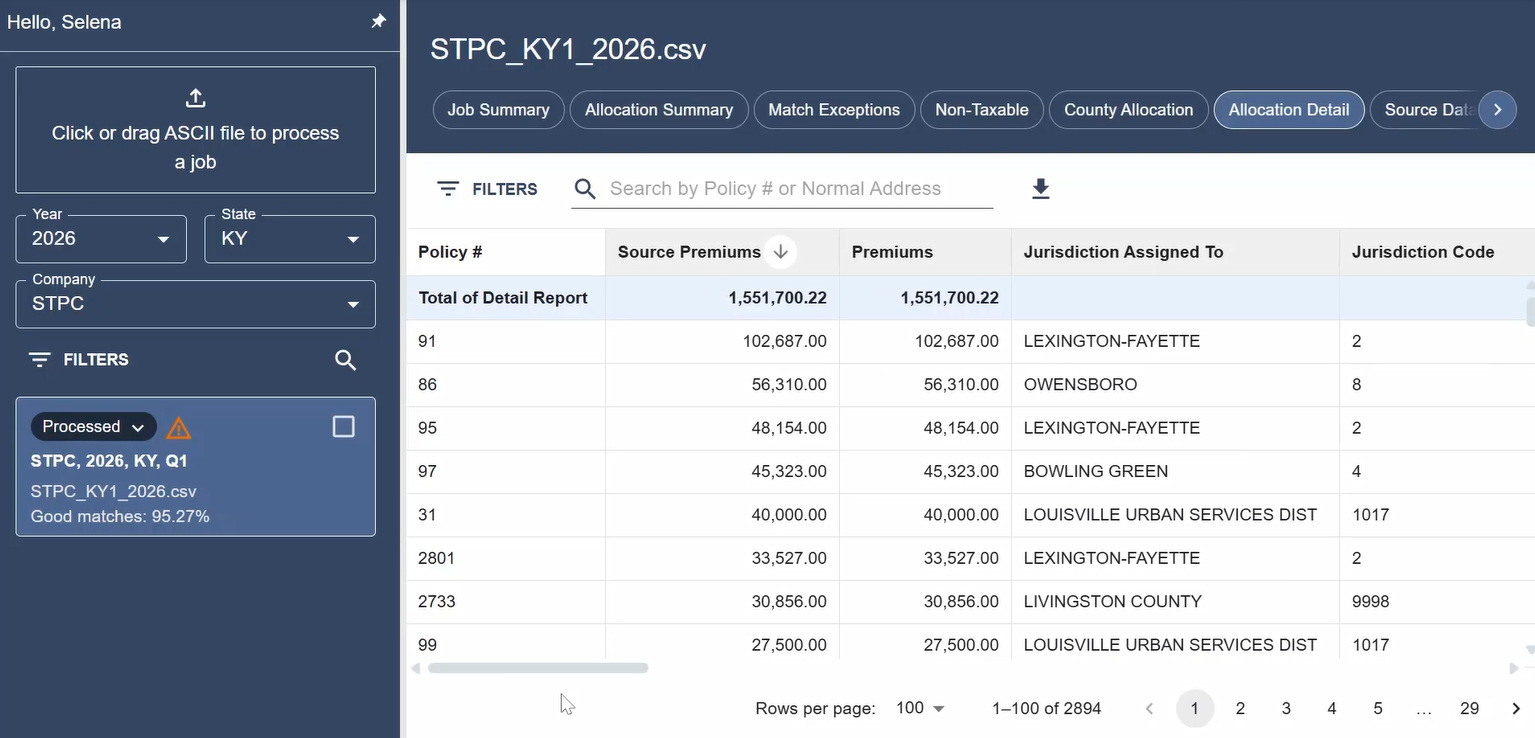
Change the Number of Rows Displayed
Allocator reports may include many policy records. Use the rows-per-page option to control how many records appear on the screen at one time.
For example, you may choose to view fewer rows while reviewing individual records or more rows when you want to see a larger portion of the report.

Sort Report Columns
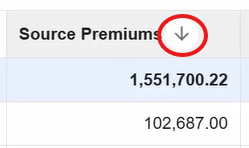
Use sorting to arrange report data by a selected column.
To sort a report, click the sort arrow or column header for the column you want to sort.
You can use sorting to group similar records together, such as records with the same jurisdiction code, match code, county, city, or premium type.
Filter Report Data
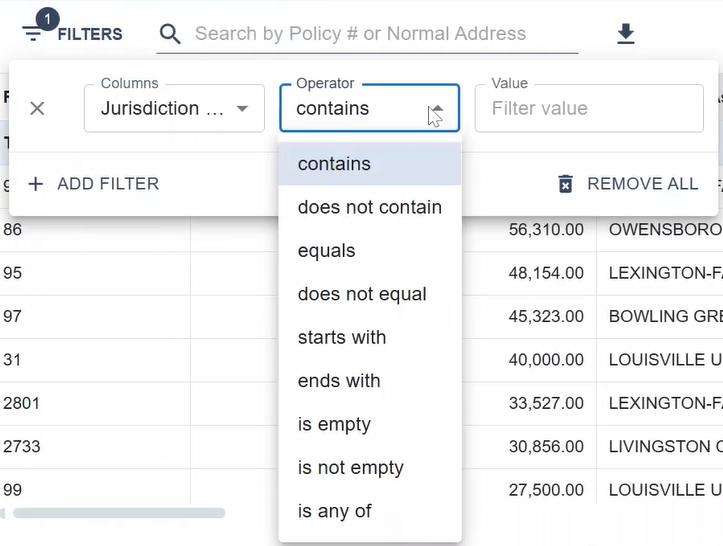
Use filters to narrow the report to records that meet specific criteria.
To filter a report:
- Click Filters.
- Select the column you want to filter by.
- Choose the filter operator.
- Enter the filter value.
- Apply the filter.
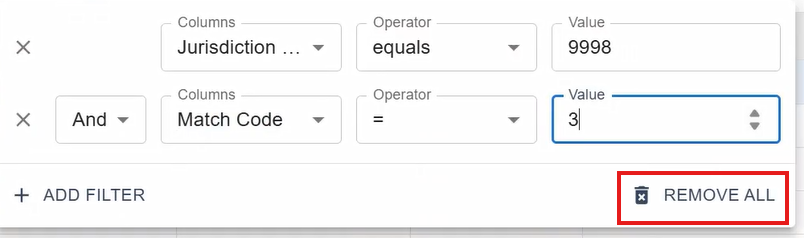
For example, you may filter the Allocation Detail report to show records with a specific jurisdiction code or match code.
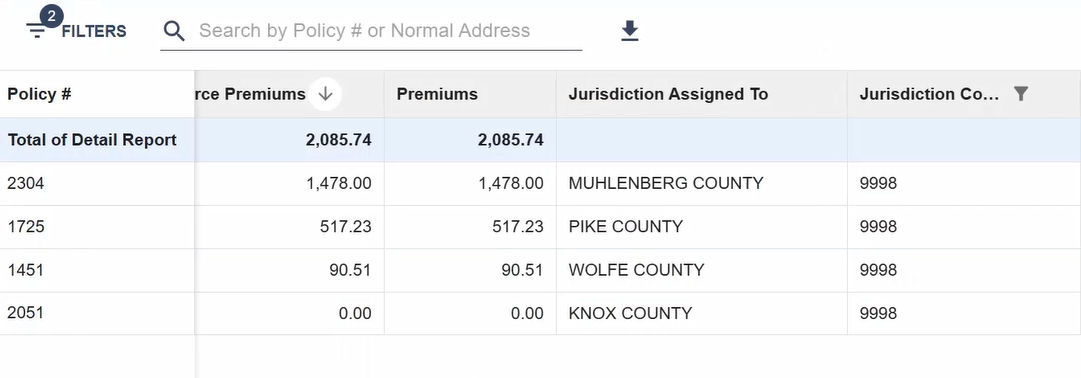
Add Multiple Filters
You can add more than one filter to narrow the report further.
For example, you may filter for records assigned to a non-taxable jurisdiction and then add another filter for records with a specific match code.
Use multiple filters when you need to review a smaller group of related records.
Remove Filters
After reviewing filtered records, remove the filters to return to the full report.
Use Remove All to clear the filters and show all records again.
Search a Report
Use the search field to find specific policy or address information within a report.
Depending on the report, you may be able to search by information such as policy number or normal address.
To search a report, click inside the search field and enter the value you want to find.

Manage Columns
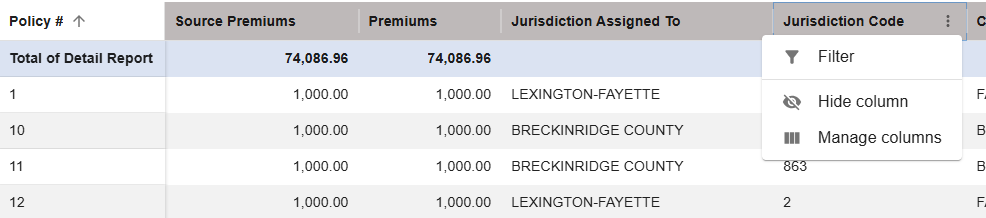
Use column options to hide or show report columns.
To manage columns, open the column menu from the report header. You can hide columns you do not need to review or show columns that were previously hidden.
This can make wide reports easier to read, especially when reviewing policy-level details.
Download the Current Report
To download the report currently displayed, click the download icon for that report.
This downloads the selected report as a file.

To download all reports for a job, use the export options from the job tile.
Tips for Reviewing Reports
Use report tools together when reviewing allocation results.
For example:
- Use the Job Summary to identify match codes that need review.
- Open the Allocation Detail, Match Exceptions, or Non-Taxable report.
- Filter by match code or jurisdiction code.
- Sort the filtered results to group similar records together.
- Search for a specific policy number or address, if needed.
- Remove filters when you are ready to return to the full report.
Next Step
After reviewing report data, correct address exceptions if needed. If no corrections are needed, approve the allocation job.
Related Articles